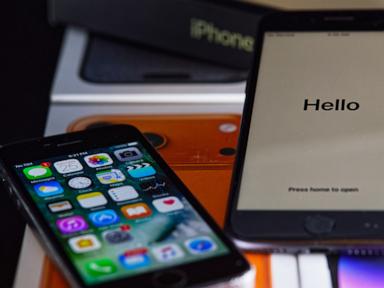
You are wasting hours every week tapping on glass. Most people use their iPhone keyboards the exact same way they did ten years ago. They hunt for punctuation keys, tap out numbers one by one, and swear at autocorrect when it swaps a perfectly normal word for absolute nonsense. It is painfully slow. Apple hides dozens of clever features right under your thumbs, but nobody takes five minutes to look at them.
Let us fix that right now. Here are the actual shortcuts worth using every single day. Discover more on a related topic: this related article.
The Backspace Swipe Nobody Told You About
Deleting a long sentence is exhausting. You hold down the delete key, watch it crawl backward word by word, and usually overshoot your target by a mile. You end up erasing half the paragraph you actually wanted to keep.
Stop doing that. More reporting by Gizmodo highlights similar perspectives on the subject.
Place your finger on the delete key and slide it to the left. Your iPhone will highlight whole blocks of words instantly. Lift your finger, and the entire selection vanishes. You can also tap the keyboard with two fingers and swipe left to clear text even faster. It takes two days to build the muscle memory, and then you will never mash the backspace key again.
The Hidden Trackpad Nobody Uses
Trying to fix a typo in the middle of a word on a small screen feels like performing surgery with oven mitts. You tap the screen, the cursor lands between the wrong letters, and you spend three frantic minutes trying to grab that tiny vertical line.
You do not need a stylus. You do not need precise fingernails.
Press and hold the spacebar. Watch the letters instantly fade out. Your entire keyboard just turned into a trackpad. Slide your finger around in any direction to glide the cursor precisely where you need it. Want to highlight a specific phrase while you are in trackpad mode? Just tap the keyboard with a second finger.
- Hold spacebar to activate the trackpad.
- Slide anywhere to move the cursor smoothly.
- Tap with a second finger to select text blocks.
The Text Replacement Trick That Saves Hundreds of Keystrokes
If you type your email address, your home address, or standard canned responses every day, you are burning valuable minutes. iOS has a built-in shortcut engine that lets you turn short abbreviations into massive blocks of text.
Go into your settings, find the general keyboard menu, and look for text replacement. Set up a trigger like @@ to automatically expand into your full email address. Make myaddress output your complete street location with zip code.
Shortcut: @@ -> Expands to: user@example.com
Shortcut: /omw -> Expands to: On my way, see you in five minutes.
The magic happens globally across every app on your device. It works in email clients, messaging threads, and web browsers.
One Handed Typing Is Not Just For Small Phones
Maxed-out phone screens look great for videos, but trying to reach the letter "P" with your thumb while holding a coffee cup is a nightmare. Dropping your expensive device onto concrete just to type a text message is an expensive mistake.
You can shrink the keyboard instantly.
Press and hold the emoji icon or the small globe icon in the bottom corner of your keyboard. A small menu pops up showing three keyboard layouts. Tap the left-handed or right-handed icon. The entire keyboard squishes toward that side of the screen, putting every single key safely within thumb reach. Tap the empty space on the screen to pop it right back to full size whenever you want.
Numbers And Symbols Without The Switch
Switching back and forth between the primary keyboard and the number screen breaks your typing flow. Every tap counts when you are trying to send a quick message before a light turns green.
You can grab numbers and punctuation on the fly.
Press and hold the 123 key with your left thumb, slide your thumb directly to the number or symbol you want without lifting it, and release. The keyboard types that character and immediately snaps back to your standard alphabet layout. It saves you an entire keystroke every single time you need a comma, a question mark, or a digit.
Fixing Autocorrect Once And For All
Autocorrect loves changing your slang into bizarre corporate jargon. It ruins jokes, creates awkward family texts, and acts like a strict grammar teacher who hates fun.
You can train it to behave.
If autocorrect keeps ruining a specific word you use often, add it as a contact card in your phone, or create a blank text replacement shortcut for it. More importantly, turn off auto-capitalization if it drives you crazy. The system learns your typing patterns over time, but you have to stop blindly accepting its corrections. Pay attention to the predictive text bar sitting right above your keys. Tapping the leftmost suggestion usually brings back the exact word you typed before the software tried to fix it.
Stop fighting your phone. Turn on these settings today and watch how fast your thumbs move.